Put computer files in a folder and find them again
Practice with two harmless files. Make a folder, use clear names, and check that you can find and open your copies.
Why it matters: A simple filing habit can save time when a teacher or employer asks for the right document.
Written guidance reviewed: 2026-10-24 · Sources and equipment assumptions are below.
Take this guide to another device
Steps, notes, supplies, setup choices, results and check dates save on this browser as you work. Plus can also keep an account copy. Account copies update only when you choose Save; loading one replaces the browser draft shown here.
Review all saved work. Saved account check dates appear in My Day. Clear the date and save again to finish a follow-up. Email settings stay separate; existing opted-in agenda or deadline emails can include these dated actions.
Understand the job before starting
A simple filing habit can save time when a teacher or employer asks for the right document.
A common mistake to avoid
If a file seems missing, stop rearranging items. Check the written location, the search result location and the original folder. A similarly named item may be a different version. Do not approve a replace or merge warning to make it disappear. If the commands differ from these examples, use the official help for your computer version. Avoid bulk cleanup tools, mass renaming and deleting duplicates while learning.
Words used in this guide
Rent
The amount paid to use someone else’s property for an agreed time. Read the example
Backup
A recoverable copy of data made for loss or damage. Read the example
Use what you already have. Check each item when it is ready.
Before you begin
Practice only with your own non-sensitive documents. Leave system, app and shared work folders alone. Stop at a permission, replace, merge or overwrite warning rather than guessing. Do not rename a file extension, change sharing settings, delete originals, or use private identity records for practice. Organization is not a backup.
0 of 4 steps checked0%
Guide progress and notes save on this browser; choose Save account copy above to carry them to another device with Plus. Downloads contain the complete blank checklist; print to include your current checks and notes.
Do it with me
Your step position saves on this browser. Use the picture when available, then check the written result.
STEP 1 OF 4
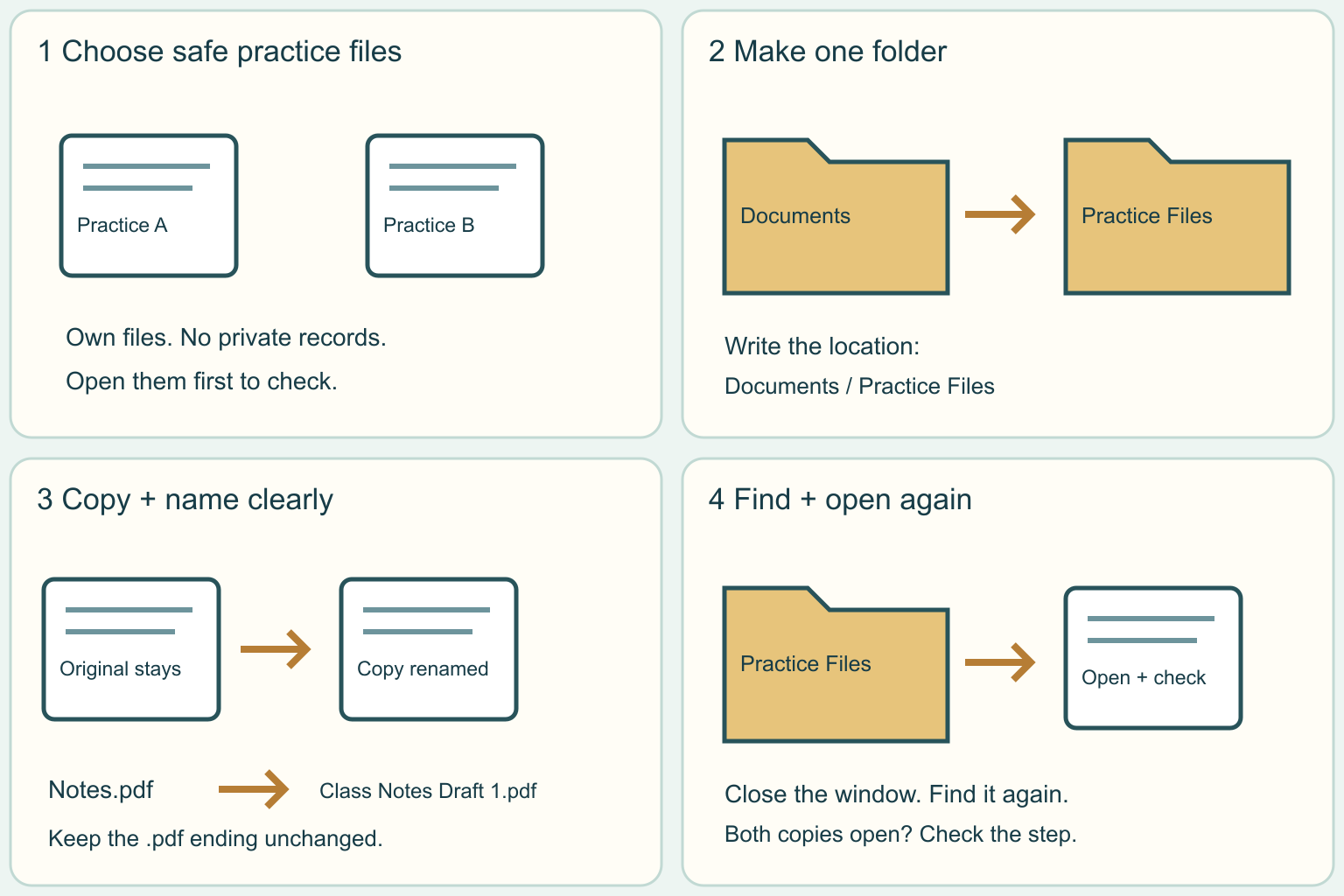
Choose two safe practice files
Start here: Start with two documents you can already open.
Illustration: Choose two safe practice files. Read the steps for your exact task.
Read-aloud is available in supported browsers; the written steps always remain available.
A file is one saved item, such as a document.
A folder is a container that can hold files.
Pick two ordinary practice documents that you created.
Open each one first so you know it works, then close it.
On Windows, open File Explorer from Start or with Windows key + E.
On a Mac, open Finder from the Dock.
These apps help you see where files are stored.
This guide is for a computer; phone screens work differently.
Before moving to the next step
Check this specific result: I selected two harmless documents I own and confirmed both open.
If that result is not true yet, leave the box unchecked. Write what is missing in your notes; use the official instructions below when the equipment or situation differs.
STEP 1 OF 4
Choose two safe practice files
Start here: Start with two documents you can already open.
Illustration: Choose two safe practice files. Read the steps for your exact task.
A file is one saved item, such as a document.
A folder is a container that can hold files.
Pick two ordinary practice documents that you created.
Open each one first so you know it works, then close it.
On Windows, open File Explorer from Start or with Windows key + E.
On a Mac, open Finder from the Dock.
These apps help you see where files are stored.
This guide is for a computer; phone screens work differently.
Before moving to the next step
Check this specific result: I selected two harmless documents I own and confirmed both open.
If that result is not true yet, leave the box unchecked. Write what is missing in your notes; use the official instructions below when the equipment or situation differs.
STEP 2 OF 4
Make one clearly named folder
Start here: Create and open Practice Files in an allowed location.
Illustration: Make one clearly named folder. Read the steps for your exact task.
Choose a location in your own Documents area.
Check whether the location is on this computer or in a cloud account; Documents can be synced.
On Windows, use New, then Folder in File Explorer.
On a Mac, use File, then New Folder in Finder.
Name it Practice Files and confirm the name.
Open it.
Write its location, such as Documents / Practice Files.
A location is the sequence of folders you follow to reach an item.
If the control is unavailable, ask for help instead of changing permissions.
Before moving to the next step
Check this specific result: My Practice Files folder exists, and I wrote down where it is.
If that result is not true yet, leave the box unchecked. Write what is missing in your notes; use the official instructions below when the equipment or situation differs.
STEP 3 OF 4
Copy first, then give the copies clear names
Start here: Copy two files and rename only their copies.
Illustration: Copy first, then give the copies clear names. Read the steps for your exact task.
On Windows, select a practice file and choose Copy from its right-click menu.
Open Practice Files and choose Paste.
On a Mac, hold Option while dragging the file into the folder to make a copy.
Repeat with the second file.
Copy means the original stays where it was; moving changes its location.
Rename each copy using its Rename command.
Choose a useful name such as Class Notes Draft 1.
Keep the extension, such as .pdf or .docx, exactly as it is if shown.
The extension helps identify the file type; changing it does not convert a document.
Before moving to the next step
Check this specific result: Both copies are in the new folder, their names are clear, and the originals remain.
If that result is not true yet, leave the box unchecked. Write what is missing in your notes; use the official instructions below when the equipment or situation differs.
STEP 4 OF 4
Close the folder and prove you can find it
Start here: Find your folder again and open both copies.
Illustration: Close the folder and prove you can find it. Read the steps for your exact task.
Close the folder window.
Open File Explorer or Finder again and follow the location you wrote down.
Open each copy and check that it is the expected document.
You can also use the file app search box with a distinctive name, then check the result location before opening it.
Record the exact version you intend to use; a copy can become outdated if you later edit only the original.
A tidy folder on the same device is not a separate backup.
Use the backup guide for protecting files against loss.
Before moving to the next step
Check this specific result: I found the folder again and opened both correctly named copies.
If that result is not true yet, leave the box unchecked. Write what is missing in your notes; use the official instructions below when the equipment or situation differs.
Pictures for this guide
Picture 1 of 4 · Choose two safe practice files
Two documents are marked as harmless practice files that already open.
For: Choose two safe practice files
Illustrations show examples of the actions above. Follow your equipment’s instructions.
Notes about these pictures
A file is one saved item, such as a document. A folder is a container that can hold files. Pick two ordinary practice documents that you created. Open each one first so you know it works, then close it. On Windows, open File Explorer from Start or with Windows key + E. On a Mac, open Finder from the Dock. These apps help you see where files are stored. This guide is for a computer; phone screens work differently.
Practice only with your own non-sensitive documents. Leave system, app and shared work folders alone. Stop at a permission, replace, merge or overwrite warning rather than guessing. Do not rename a file extension, change sharing settings, delete originals, or use private identity records for practice. Organization is not a backup.
Was this step clear?
Flag “Choose two safe practice files” for review. We save the guide and step identifiers with your account to limit duplicates, not your private notes.
A specific companion has not been selected for this new guide yet. You can search for related demonstrations; search results have not been reviewed by Life’s Checklists.
These YouTube videos belong to their respective creators. Life’s Checklists does not own them and is not affiliated with the creators. Links open on YouTube, where the videos are available independently of our membership.
How to use the video with this guide
Read “Before you begin” first. Watch the relevant part, pause, then return to the written step and its completion check. Use captions and playback speed if they help. A demonstration may cover only part of the task or show different equipment.
Your model’s instructions and current official guidance take priority. For urgent problems, follow the stop instructions without waiting to watch a video.
Finish the job and know what to do next.
For this guide, the final result is: I found the folder again and opened both correctly named copies.
A concrete way to approach this task
Fictional example: Sam makes Documents / Practice Files and copies two class practice documents into it. Sam renames the copies Class Notes Draft 1 and Class Notes Draft 2, then closes and reopens the folder to check them.
What if I cannot complete a step?
If a file seems missing, stop rearranging items. Check the written location, the search result location and the original folder. A similarly named item may be a different version. Do not approve a replace or merge warning to make it disappear. If the commands differ from these examples, use the official help for your computer version. Avoid bulk cleanup tools, mass renaming and deleting duplicates while learning.
Identify the exact step: “Choose two safe practice files.” Record what you tried, what happened, and which item or model you used. Ask for help with that specific problem rather than repeating an unsafe or unsuccessful action.
Practice only with your own non-sensitive documents. Leave system, app and shared work folders alone. Stop at a permission, replace, merge or overwrite warning rather than guessing. Do not rename a file extension, change sharing settings, delete originals, or use private identity records for practice. Organization is not a backup.
Connect this skill to everyday life
Choose one important account and verify its recovery options through the genuine service. Organize where your recovery information is stored securely.
A familiar logo or display name does not verify a sender. Account recovery codes and normal passwords have different purposes.
A useful record for this task: Record the result of “Close the folder and prove you can find it”: I found the folder again and opened both correctly named copies.
When finished, record the result and any next check or follow-up date. Your original step checks and notes remain on this browser.
Keep the result of your work
Finish and check every step before recording completion. You can write a draft below now.
Result: Not recorded · Next check: Not chosen
Choose a date from your own manual or situation. No email is enabled by saving this record.