A camera can show activity and sometimes save clips. It does not replace working locks, alarms, or an emergency plan.
Why it matters: Choosing storage and power first helps avoid surprise subscriptions and a camera that cannot work where you need it.
Written guidance reviewed: September 17, 2026 · Sources and equipment assumptions are below.
Take this guide to another device
Steps, notes, supplies, setup choices, results and check dates save on this browser as you work. Plus can also keep an account copy. Account copies update only when you choose Save; loading one replaces the browser draft shown here.
Review all saved work. Saved account check dates appear in My Day. Clear the date and save again to finish a follow-up. Email settings stay separate; existing opted-in agenda or deadline emails can include these dated actions.
Understand the job before starting
Purpose, privacy, connection, storage and recurring cost affect the choice.
A common mistake to avoid
An installed camera is not proof that recording or notifications work as intended.
Use what you already have. Check each item when it is ready.
Before you begin
Respect privacy: no cameras in bedrooms, bathrooms, or another person’s private space. Check local recording rules, especially audio. Do not climb or drill into wiring; use a qualified installer for unsafe access.
0 of 7 steps checked0%
Guide progress and notes save on this browser; choose Save account copy above to carry them to another device with Plus. Downloads contain the complete blank checklist; print to include your current checks and notes.
Do it with me
Your step position saves on this browser. Use the picture when available, then check the written result.
STEP 1 OF 7
Decide what you need to see
Start here: Decide what you need to see
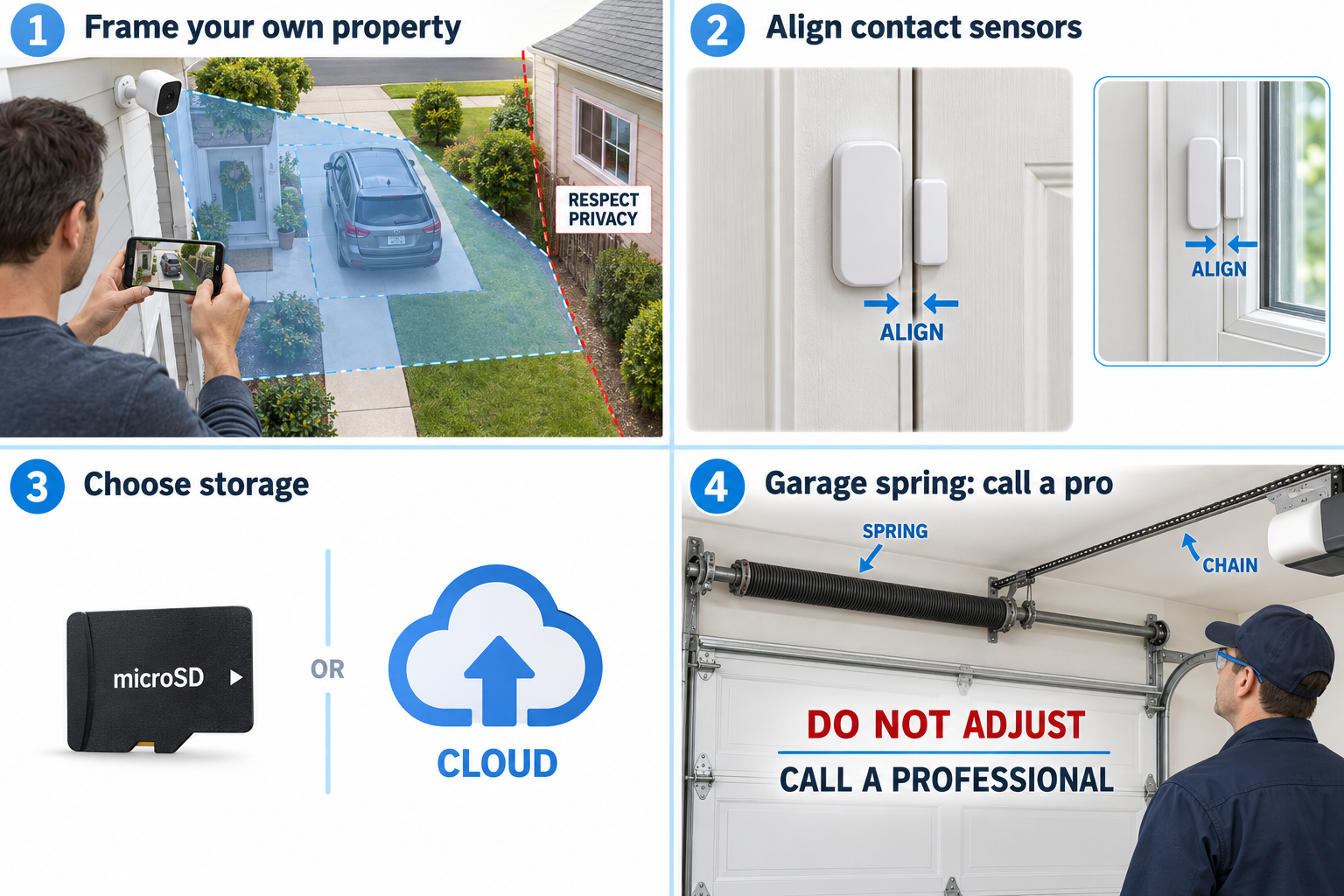
Illustration: Frame your own property. Read the steps for your exact task.
Read-aloud is available in supported browsers; the written steps always remain available.
Start with one purpose, such as your doorway or driveway.
Agree with housemates about placement, who can view clips, and when recordings are deleted.
Aim only at your own useful area and avoid neighbors’ windows.
Disable audio if not needed or not permitted.
Before moving to the next step
Check this specific result: The purpose, permission, and privacy rules are agreed.
If that result is not true yet, leave the box unchecked. Write what is missing in your notes; use the official instructions below when the equipment or situation differs.
STEP 1 OF 7
Decide what you need to see
Start here: Decide what you need to see
Illustration: Frame your own property. Read the steps for your exact task.
Start with one purpose, such as your doorway or driveway.
Agree with housemates about placement, who can view clips, and when recordings are deleted.
Aim only at your own useful area and avoid neighbors’ windows.
Disable audio if not needed or not permitted.
Before moving to the next step
Check this specific result: The purpose, permission, and privacy rules are agreed.
If that result is not true yet, leave the box unchecked. Write what is missing in your notes; use the official instructions below when the equipment or situation differs.
STEP 2 OF 7
Choose local or cloud storage
Start here: Choose local or cloud storage
Illustration: Choose storage. Read the steps for your exact task.
A microSD card can hold recordings inside a compatible camera; theft or card failure can lose them.
Cloud storage usually needs a paid plan and internet.
Some cameras offer both.
Local storage can still require an account/app and internet for remote viewing.
Verify exactly what works without a subscription.
Before moving to the next step
Check this specific result: I know how recordings are stored and what costs recur.
If that result is not true yet, leave the box unchecked. Write what is missing in your notes; use the official instructions below when the equipment or situation differs.
STEP 3 OF 7
Choose power and a suitable model
Start here: Match power and weather requirements.
Example: Match power and weather requirements. Follow the written step.
Wi-Fi does not mean battery-powered.
Wyze Cam v4 uses a power cable; outdoor use needs the approved weather-resistant power setup.
Battery cameras need charging and may record shorter events.
An indoor camera such as eufy Indoor Cam E30 is not an outdoor camera.
Ring doorbells offer model-specific battery or wired options.
Before moving to the next step
Check this specific result: My model, power, and weather rating match the location.
If that result is not true yet, leave the box unchecked. Write what is missing in your notes; use the official instructions below when the equipment or situation differs.
STEP 4 OF 7
Set up at a table before mounting
Start here: Test setup before mounting.
Example: Test setup before mounting. Follow the written step.
Install the official app from the phone’s app store.
Create a unique password, enable two-step verification, update firmware, and add the exact model as its manual says.
Use its required Wi-Fi band.
Insert/format only the supported microSD type with the camera powered as instructed.
Before moving to the next step
Check this specific result: The camera works at the table and the account is secured.
If that result is not true yet, leave the box unchecked. Write what is missing in your notes; use the official instructions below when the equipment or situation differs.
STEP 5 OF 7
Test the view before fixing the mount
Start here: Check the actual camera view.
Example: Check the actual camera view. Follow the written step.
Temporarily check the intended location without unsafe climbing.
Follow the maker’s height/angle advice; aim slightly down to see faces and the approach, not just the tops of heads.
Test day and night, avoid direct glare and infrared reflections through glass, and check Wi-Fi.
Before moving to the next step
Check this specific result: I tested the actual view, alerts, and night image.
If that result is not true yet, leave the box unchecked. Write what is missing in your notes; use the official instructions below when the equipment or situation differs.
STEP 6 OF 7
Mount safely and test playback
Start here: Mount safely and test playback.
Example: Mount safely and test playback. Follow the written step.
Use the supplied or approved bracket and anchors for the surface, within the landlord’s rules.
Protect outdoor cable connections and leave required drip loops.
Do not pinch power cables in doors/windows or improvise electrical wiring.
Walk the approach and confirm the clip actually plays back where expected.
Before moving to the next step
Check this specific result: The mount is secure and I verified a saved test clip.
If that result is not true yet, leave the box unchecked. Write what is missing in your notes; use the official instructions below when the equipment or situation differs.
STEP 7 OF 7
Maintain access and updates
Start here: Schedule a simple camera check.
Example: Schedule a simple camera check. Follow the written step.
Review app sharing when a roommate moves out.
Keep firmware/apps supported, clean the lens gently, test notifications, and check SD health/storage.
Replace when unsafe, failed, or no longer supported—not automatically every year.
Before moving to the next step
Check this specific result: I scheduled a periodic test and update check.
If that result is not true yet, leave the box unchecked. Write what is missing in your notes; use the official instructions below when the equipment or situation differs.
Pictures for this guide
Picture 1 of 7 · Frame your own property
A blue camera field of view covers the owner's doorway and driveway while excluding a neighboring window.
For: Decide what you need to see
Illustrations show examples of the actions above. Follow your equipment’s instructions.
Notes about these pictures
Start with one purpose, such as your doorway or driveway. Agree with housemates about placement, who can view clips, and when recordings are deleted. Aim only at your own useful area and avoid neighbors’ windows. Disable audio if not needed or not permitted.
Respect privacy: no cameras in bedrooms, bathrooms, or another person’s private space. Check local recording rules, especially audio. Do not climb or drill into wiring; use a qualified installer for unsafe access.
Was this step clear?
Flag “Decide what you need to see” for review. We save the guide and step identifiers with your account to limit duplicates, not your private notes.
Link details checked 2026-10-03. Video availability and equipment menus can change.
These YouTube videos belong to their respective creators. Life’s Checklists does not own them and is not affiliated with the creators. Links open on YouTube, where the videos are available independently of our membership.
How to use the video with this guide
Read “Before you begin” first. Watch the relevant part, pause, then return to the written step and its completion check. Use captions and playback speed if they help. A demonstration may cover only part of the task or show different equipment.
Your model’s instructions and current official guidance take priority. For urgent problems, follow the stop instructions without waiting to watch a video.
For this guide, the final result is: I scheduled a periodic test and update check.
A concrete way to approach this task
Choose the purpose and location, then compare privacy, storage, subscriptions, and connection requirements for the exact camera.
What if I cannot complete a step?
If the camera will not connect, record the model and the setup step that failed. Check its own instructions before repeatedly resetting devices.
Identify the exact step: “Decide what you need to see.” Record what you tried, what happened, and which item or model you used. Ask for help with that specific problem rather than repeating an unsafe or unsuccessful action.
Respect privacy: no cameras in bedrooms, bathrooms, or another person’s private space. Check local recording rules, especially audio. Do not climb or drill into wiring; use a qualified installer for unsafe access.
Connect this skill to everyday life
Write down the total move-in cash and monthly costs before applying. Ask which charges are required and which are optional.
Advertised rent is not necessarily the whole monthly cost. A refundable deposit still needs cash now. An application does not mean you have a signed lease.
A doorbell camera for seeing and responding to visitors using the supported app.
Before buying: Battery and wired installation differ. Saved video normally needs an eligible subscription; live view alone is different from recording.