Practice one short message, check the recipient and attachment, and learn how to confirm it left your drafts.
Why it matters: A clear subject and the correct file help someone understand your request without having to guess.
Written guidance reviewed: 2026-10-29 · Sources and equipment assumptions are below.
Take this guide to another device
Steps, notes, supplies, setup choices, results and check dates save on this browser as you work. Plus can also keep an account copy. Account copies update only when you choose Save; loading one replaces the browser draft shown here.
Review all saved work. Saved account check dates appear in My Day. Clear the date and save again to finish a follow-up. Email settings stay separate; existing opted-in agenda or deadline emails can include these dated actions.
Understand the job before starting
A clear subject and the correct file help someone understand your request without having to guess.
A common mistake to avoid
If the file will not attach, check the provider file-type and size rules. Do not rename a blocked unsafe file to bypass a warning. Ask the recipient for an approved alternative. If you sent to the wrong person, use the provider immediate Undo option if available, but do not assume recall will work. Contact your school or workplace support promptly if private information was involved.
Use what you already have. Check each item when it is ready.
Before you begin
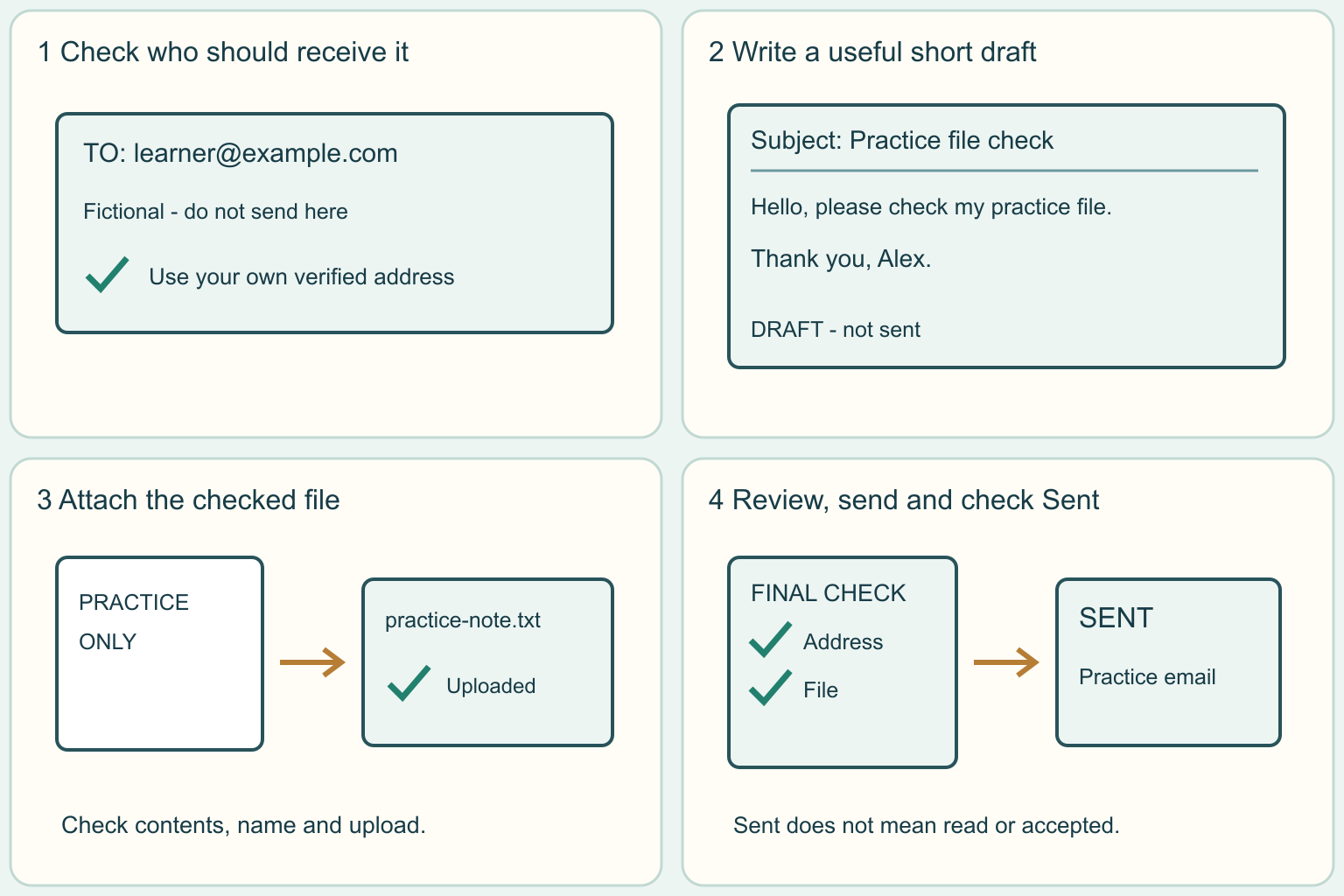
Practice with your own address and a harmless file first. Never send passwords, identity numbers or private records as practice. For real documents, use the receiving office approved secure submission method. Check all recipients before sending. The sample address in the picture is fictional and must not be used. No message is sent by completing this website checklist.
0 of 4 steps checked0%
Guide progress and notes save on this browser; choose Save account copy above to carry them to another device with Plus. Downloads contain the complete blank checklist; print to include your current checks and notes.
Do it with me
Your step position saves on this browser. Use the picture when available, then check the written result.
STEP 1 OF 4
Choose the recipient and one purpose
Start here: Find the correct address and say what you need in one sentence.
Illustration: Choose the recipient and one purpose. Read the steps for your exact task.
Read-aloud is available in supported browsers; the written steps always remain available.
An email is an electronic message.
The recipient is the person or office receiving it.
For a real task, copy the address from the office official website or confirmed instructions, not a guessed name.
Read the full address after the app suggests a contact.
To means the main recipient.
Leave Cc and Bcc empty for this first one-person practice; they add more recipients.
Decide your purpose, such as asking which form to use.
Check whether email is accepted or whether the office requires its own portal.
Before moving to the next step
Check this specific result: I verified the recipient and the accepted contact method, or chose my own address for practice.
If that result is not true yet, leave the box unchecked. Write what is missing in your notes; use the official instructions below when the equipment or situation differs.
STEP 1 OF 4
Choose the recipient and one purpose
Start here: Find the correct address and say what you need in one sentence.
Illustration: Choose the recipient and one purpose. Read the steps for your exact task.
An email is an electronic message.
The recipient is the person or office receiving it.
For a real task, copy the address from the office official website or confirmed instructions, not a guessed name.
Read the full address after the app suggests a contact.
To means the main recipient.
Leave Cc and Bcc empty for this first one-person practice; they add more recipients.
Decide your purpose, such as asking which form to use.
Check whether email is accepted or whether the office requires its own portal.
Before moving to the next step
Check this specific result: I verified the recipient and the accepted contact method, or chose my own address for practice.
If that result is not true yet, leave the box unchecked. Write what is missing in your notes; use the official instructions below when the equipment or situation differs.
STEP 2 OF 4
Write a short subject and message
Start here: Start a new message with a useful subject and one clear request.
Illustration: Write a short subject and message. Read the steps for your exact task.
Choose Compose or New mail in your email app.
A draft is a message you are still preparing.
The subject is its short heading; the body is the main text.
Use a subject such as Question about the club form.
Begin with Hello, explain why you are writing, ask one clear question, and finish with your name.
If you include a file, name it in the message.
Avoid putting private details in the subject because it may appear in notifications.
A saved draft has not been sent.
Before moving to the next step
Check this specific result: My draft has a useful subject, a polite greeting, one clear request and my name.
If that result is not true yet, leave the box unchecked. Write what is missing in your notes; use the official instructions below when the equipment or situation differs.
STEP 3 OF 4
Attach and check the actual file
Start here: Use the attachment control and wait until the file finishes uploading.
Illustration: Attach and check the actual file. Read the steps for your exact task.
An attachment is a file sent with a message.
Open your chosen file first and check its contents and name.
In Gmail on a computer, use the Attach paperclip button, select the file and choose Open.
Other apps have an Attach file control.
Wait for upload progress to finish.
Check the displayed filename and preview it if available; remove a wrong file before continuing.
A cloud link points to an online file instead of sending a copy.
Outlook offers both options, and Gmail may use a Drive link for an oversized file.
If a link appears, stop and check access and the recipient instructions.
Do not make a file public just to solve access.
Before moving to the next step
Check this specific result: The intended harmless file is fully attached, or I paused to resolve a link or upload problem.
If that result is not true yet, leave the box unchecked. Write what is missing in your notes; use the official instructions below when the equipment or situation differs.
STEP 4 OF 4
Review, send once and check Sent
Start here: Check the address, words and file before choosing Send.
Illustration: Review, send once and check Sent. Read the steps for your exact task.
Read the complete recipient address again.
Check the subject, message and attachment.
If everything is ready and you intend to send it, choose Send once.
Open Sent or Sent Items and find the message; check that it includes the intended attachment.
Drafts means it may still be unfinished.
Outbox can mean it is waiting to send.
A sent copy is not proof that the person read it or accepted a submission.
Watch for a delivery error.
If you get one, check the address and official help before trying again.
Follow the office stated response time instead of sending repeated copies.
Before moving to the next step
Check this specific result: I checked the sent copy and any delivery error, or kept the message as a draft until ready.
If that result is not true yet, leave the box unchecked. Write what is missing in your notes; use the official instructions below when the equipment or situation differs.
Pictures for this guide
Picture 1 of 4 · Choose the recipient and one purpose
A verified-address checklist points to a fictional practice recipient field.
For: Choose the recipient and one purpose
Illustrations show examples of the actions above. Follow your equipment’s instructions.
Notes about these pictures
An email is an electronic message. The recipient is the person or office receiving it. For a real task, copy the address from the office official website or confirmed instructions, not a guessed name. Read the full address after the app suggests a contact. To means the main recipient. Leave Cc and Bcc empty for this first one-person practice; they add more recipients. Decide your purpose, such as asking which form to use. Check whether email is accepted or whether the office requires its own portal.
Practice with your own address and a harmless file first. Never send passwords, identity numbers or private records as practice. For real documents, use the receiving office approved secure submission method. Check all recipients before sending. The sample address in the picture is fictional and must not be used. No message is sent by completing this website checklist.
Was this step clear?
Flag “Choose the recipient and one purpose” for review. We save the guide and step identifiers with your account to limit duplicates, not your private notes.
A specific companion has not been selected for this new guide yet. You can search for related demonstrations; search results have not been reviewed by Life’s Checklists.
These YouTube videos belong to their respective creators. Life’s Checklists does not own them and is not affiliated with the creators. Links open on YouTube, where the videos are available independently of our membership.
How to use the video with this guide
Read “Before you begin” first. Watch the relevant part, pause, then return to the written step and its completion check. Use captions and playback speed if they help. A demonstration may cover only part of the task or show different equipment.
Your model’s instructions and current official guidance take priority. For urgent problems, follow the stop instructions without waiting to watch a video.
Finish the job and know what to do next.
For this guide, the final result is: I checked the sent copy and any delivery error, or kept the message as a draft until ready.
A concrete way to approach this task
Fictional practice message to your own verified address: Subject: Practice file check. Body: Hello, this is my practice email. I attached practice-note.txt, which contains only the words Practice only. Thank you, Alex. After sending, open Sent and confirm the file is there. Never use the sample picture address as a real recipient.
What if I cannot complete a step?
If the file will not attach, check the provider file-type and size rules. Do not rename a blocked unsafe file to bypass a warning. Ask the recipient for an approved alternative. If you sent to the wrong person, use the provider immediate Undo option if available, but do not assume recall will work. Contact your school or workplace support promptly if private information was involved.
Identify the exact step: “Choose the recipient and one purpose.” Record what you tried, what happened, and which item or model you used. Ask for help with that specific problem rather than repeating an unsafe or unsuccessful action.
Practice with your own address and a harmless file first. Never send passwords, identity numbers or private records as practice. For real documents, use the receiving office approved secure submission method. Check all recipients before sending. The sample address in the picture is fictional and must not be used. No message is sent by completing this website checklist.
Connect this skill to everyday life
Choose one real role and read the requirements. Write down one truthful example of a skill you can demonstrate.
A résumé describes your experience; an application may ask separate required questions. Submitting either does not mean an interview is booked.
A useful record for this task: Record the result of “Review, send once and check Sent”: I checked the sent copy and any delivery error, or kept the message as a draft until ready.
When finished, record the result and any next check or follow-up date. Your original step checks and notes remain on this browser.
Keep the result of your work
Finish and check every step before recording completion. You can write a draft below now.
Result: Not recorded · Next check: Not chosen
Choose a date from your own manual or situation. No email is enabled by saving this record.