Put one appointment on your calendar and test an alert
Add one confirmed event, save a reminder, and practice finding it again. You can start with a harmless practice event.
Why it matters: A written plan frees you from trying to remember every date. Testing the reminder helps you learn what your device actually does.
Written guidance reviewed: 2026-10-27 · Sources and equipment assumptions are below.
Take this guide to another device
Steps, notes, supplies, setup choices, results and check dates save on this browser as you work. Plus can also keep an account copy. Account copies update only when you choose Save; loading one replaces the browser draft shown here.
Review all saved work. Saved account check dates appear in My Day. Clear the date and save again to finish a follow-up. Email settings stay separate; existing opted-in agenda or deadline emails can include these dated actions.
Understand the job before starting
A written plan frees you from trying to remember every date. Testing the reminder helps you learn what your device actually does.
A common mistake to avoid
If no practice alert arrives, check the app official instructions and device notification permissions. Browser alerts can need Google Calendar open and browser permission; do not assume every device has the same setup. Test again after an approved change. Until it works, use a paper note and a daily check. This guide does not set reminders for you or promise syncing between devices.
Words used in this guide
Backup
A recoverable copy of data made for loss or damage. Read the example
Use what you already have. Check each item when it is ready.
Before you begin
Keep passwords, ID numbers and private appointment details out of shared calendars and worksheets. Check which calendar you selected and who can see it. Do not invite guests by accident. A saved event is not a booking or proof that an office expects you. Do not rely only on a phone alert for an urgent deadline; keep a backup plan.
0 of 4 steps checked0%
Guide progress and notes save on this browser; choose Save account copy above to carry them to another device with Plus. Downloads contain the complete blank checklist; print to include your current checks and notes.
Do it with me
Your step position saves on this browser. Use the picture when available, then check the written result.
STEP 1 OF 4
Confirm the details before typing
Start here: Write the date, time and place from the real confirmation.
Illustration: Confirm the details before typing. Read the steps for your exact task.
Read-aloud is available in supported browsers; the written steps always remain available.
An event is a block of time for something you plan to do.
Read the appointment message, or ask the organizer to confirm the full date, start time, end time and place.
Check AM or PM.
For an online event in another area, ask which time zone applies: a time zone is the local clock used for that place.
Do not guess from a short message such as Tuesday at three.
For practice, invent an event called Practice only and use no private details.
Before moving to the next step
Check this specific result: I have a full confirmed date, time and place, or a clearly labeled practice event.
If that result is not true yet, leave the box unchecked. Write what is missing in your notes; use the official instructions below when the equipment or situation differs.
STEP 1 OF 4
Confirm the details before typing
Start here: Write the date, time and place from the real confirmation.
Illustration: Confirm the details before typing. Read the steps for your exact task.
An event is a block of time for something you plan to do.
Read the appointment message, or ask the organizer to confirm the full date, start time, end time and place.
Check AM or PM.
For an online event in another area, ask which time zone applies: a time zone is the local clock used for that place.
Do not guess from a short message such as Tuesday at three.
For practice, invent an event called Practice only and use no private details.
Before moving to the next step
Check this specific result: I have a full confirmed date, time and place, or a clearly labeled practice event.
If that result is not true yet, leave the box unchecked. Write what is missing in your notes; use the official instructions below when the equipment or situation differs.
STEP 2 OF 4
Create and save one event
Start here: Open your calendar and enter the checked details.
Illustration: Create and save one event. Read the steps for your exact task.
In Google Calendar on a computer, choose Create, then add the title and event details and Save.
On iPhone Calendar, use the Add button, fill in the event, then finish with Done.
Button names can change; use your app official help if yours differs.
Choose a calendar you control and check its sharing.
Enter the date, start and end time, and location.
An all-day event has no specific start hour; leave that option off for a timed appointment.
Reopen the saved event and compare it with the confirmation.
Before moving to the next step
Check this specific result: The saved event shows the right date, AM or PM, time range and location in the intended calendar.
If that result is not true yet, leave the box unchecked. Write what is missing in your notes; use the official instructions below when the equipment or situation differs.
STEP 3 OF 4
Choose a reminder and try it
Start here: Save an advance alert, then test with a separate practice event.
Illustration: Choose a reminder and try it. Read the steps for your exact task.
An alert or notification is a message that reminds you about an event.
Open the event editing screen and find Alert or Add notification.
Pick a lead time that gives you room to prepare, then save.
On iPhone, Alert is in the event details.
Google lets you change notifications for one event.
Create a separate Practice only event shortly in the future and give it an alert available in your app.
Keep the device available and observe whether the message arrives.
Test before depending on it.
Before moving to the next step
Check this specific result: I saved the intended alert and recorded whether a harmless practice alert arrived.
If that result is not true yet, leave the box unchecked. Write what is missing in your notes; use the official instructions below when the equipment or situation differs.
STEP 4 OF 4
Review tomorrow and keep changes current
Start here: Check the next day and update any changed appointment.
Illustration: Review tomorrow and keep changes current. Read the steps for your exact task.
Look at tomorrow in the calendar.
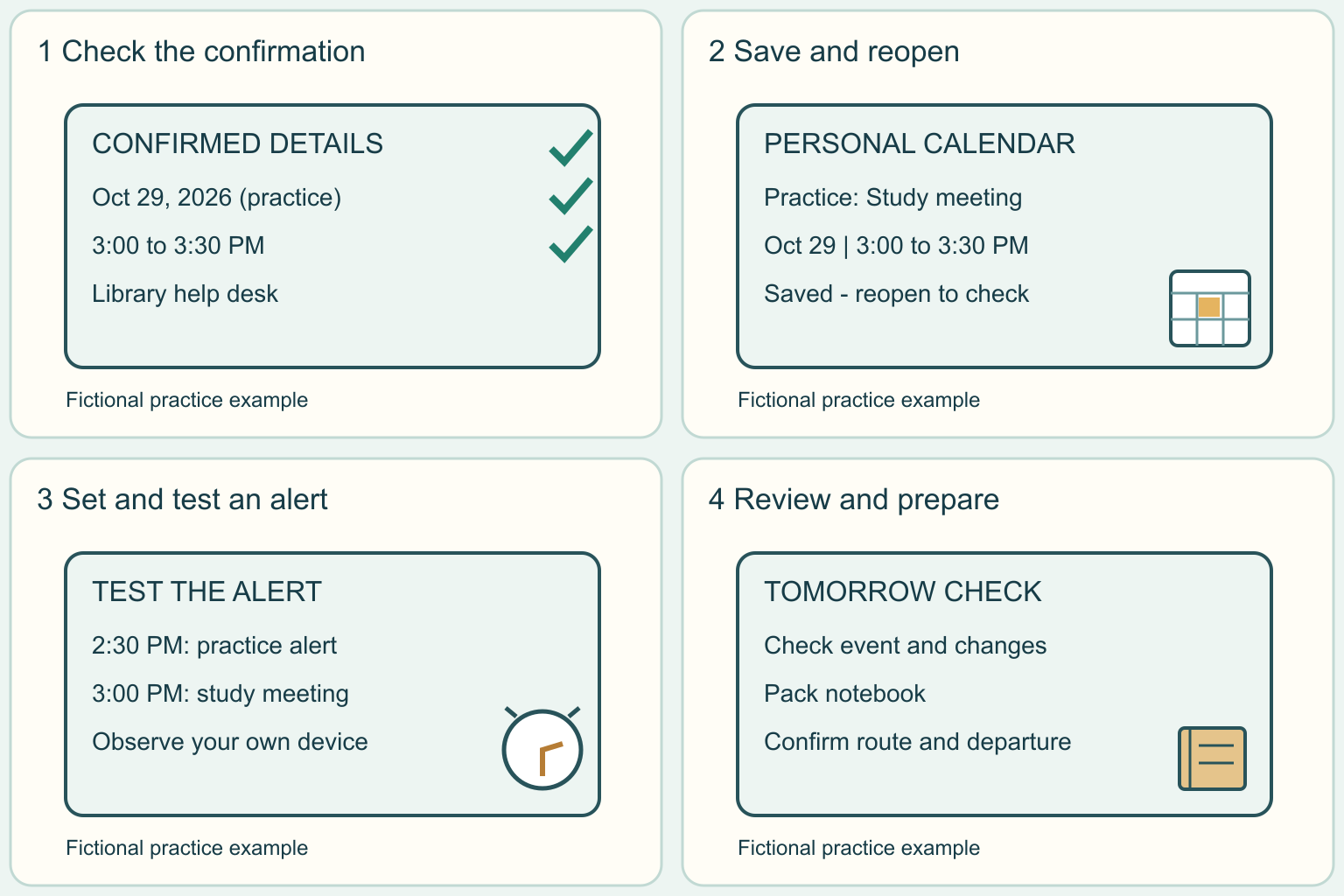
For our fictional 3:00 PM study meeting, a 2:30 PM alert is 30 minutes early; that does not prove 30 minutes is enough travel time.
Plan your own preparation and trip separately.
If the organizer changes the time, edit the original event and save, then reopen it to check.
Avoid making a second conflicting copy.
A paper calendar also works: write the event clearly and choose a daily review time.
Keep a paper note as backup if your device is unreliable.
Before moving to the next step
Check this specific result: I reviewed the next event, planned preparation separately, and know how to update it.
If that result is not true yet, leave the box unchecked. Write what is missing in your notes; use the official instructions below when the equipment or situation differs.
Pictures for this guide
Picture 1 of 4 · Confirm the details before typing
A confirmation note shows an invented date, PM time range and library location.
For: Confirm the details before typing
Illustrations show examples of the actions above. Follow your equipment’s instructions.
Notes about these pictures
An event is a block of time for something you plan to do. Read the appointment message, or ask the organizer to confirm the full date, start time, end time and place. Check AM or PM. For an online event in another area, ask which time zone applies: a time zone is the local clock used for that place. Do not guess from a short message such as Tuesday at three. For practice, invent an event called Practice only and use no private details.
Keep passwords, ID numbers and private appointment details out of shared calendars and worksheets. Check which calendar you selected and who can see it. Do not invite guests by accident. A saved event is not a booking or proof that an office expects you. Do not rely only on a phone alert for an urgent deadline; keep a backup plan.
Was this step clear?
Flag “Confirm the details before typing” for review. We save the guide and step identifiers with your account to limit duplicates, not your private notes.
A specific companion has not been selected for this new guide yet. You can search for related demonstrations; search results have not been reviewed by Life’s Checklists.
These YouTube videos belong to their respective creators. Life’s Checklists does not own them and is not affiliated with the creators. Links open on YouTube, where the videos are available independently of our membership.
How to use the video with this guide
Read “Before you begin” first. Watch the relevant part, pause, then return to the written step and its completion check. Use captions and playback speed if they help. A demonstration may cover only part of the task or show different equipment.
Your model’s instructions and current official guidance take priority. For urgent problems, follow the stop instructions without waiting to watch a video.
Finish the job and know what to do next.
For this guide, the final result is: I reviewed the next event, planned preparation separately, and know how to update it.
A concrete way to approach this task
Fictional practice: Study meeting on October 29, 2026, from 3:00 to 3:30 PM at the campus library help desk, using the campus local time. Save it on a personal calendar. A 30-minute alert means 2:30 PM. These are invented details, not an actual campus booking.
What if I cannot complete a step?
If no practice alert arrives, check the app official instructions and device notification permissions. Browser alerts can need Google Calendar open and browser permission; do not assume every device has the same setup. Test again after an approved change. Until it works, use a paper note and a daily check. This guide does not set reminders for you or promise syncing between devices.
Identify the exact step: “Confirm the details before typing.” Record what you tried, what happened, and which item or model you used. Ask for help with that specific problem rather than repeating an unsafe or unsuccessful action.
Keep passwords, ID numbers and private appointment details out of shared calendars and worksheets. Check which calendar you selected and who can see it. Do not invite guests by accident. A saved event is not a booking or proof that an office expects you. Do not rely only on a phone alert for an urgent deadline; keep a backup plan.
Connect this skill to everyday life
Use your school’s official calendar to collect one deadline and its required action. Separate application, registration, payment, housing, and financial-aid dates.
Admission is not course registration, and an aid estimate is not money already received. Each office may need different documents.
A useful record for this task: Record the result of “Review tomorrow and keep changes current”: I reviewed the next event, planned preparation separately, and know how to update it.
When finished, record the result and any next check or follow-up date. Your original step checks and notes remain on this browser.
Keep the result of your work
Finish and check every step before recording completion. You can write a draft below now.
Result: Not recorded · Next check: Not chosen
Choose a date from your own manual or situation. No email is enabled by saving this record.